The feature, available globally to Gemini Pro users, moves beyond static text and diagrams, enabling users to manipulate variables in real time and visualise how complex systems behave — all from a single prompt
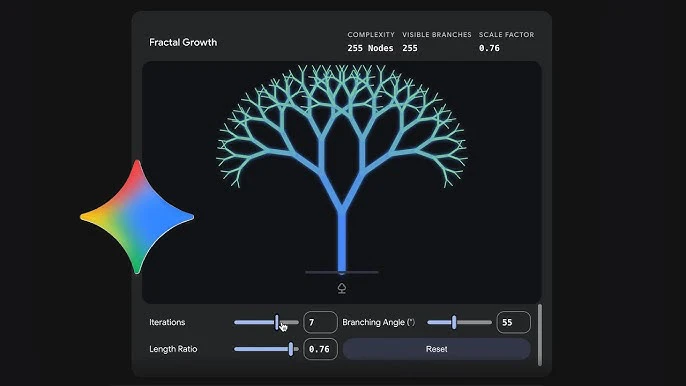
Google has begun rolling out a significant update to its Gemini app that allows users to generate custom, interactive simulations and dynamic models directly within the chat interface, marking a notable shift in how AI assistants present complex information.
The feature, available globally to Gemini Pro users, moves beyond static text and diagrams, enabling users to manipulate variables in real time and visualise how complex systems behave — all from a single prompt.
What the Feature Does
Rather than returning a text explanation or a fixed image when asked about a scientific concept, Gemini can now produce functional, interactive models rendered directly in the browser. A user asking about planetary orbits, for instance, can adjust sliders for variables such as gravitational strength and initial velocity, and watch in real time how those changes affect the outcome — such as whether a stable orbit is achieved.
The update effectively transforms Gemini from a passive information tool into what Google describes as a customisable learning laboratory, offering immediate visual feedback on user hypotheses. Other potential use cases include rotating three-dimensional molecular structures in chemistry, simulating physics systems, and exploring mathematical relationships dynamically.
Who Can Access It
The feature is currently rolling out globally to all Gemini app users on the Pro model. However, Google has confirmed it is not yet available for Education or Workspace accounts.
Step-by-Step Guide: How to Use Interactive Simulations on Gemini
Step 1: Go to gemini.google.com
Open your browser and navigate to gemini.google.com. Ensure you are signed in to your Google account.
Step 2: Select the Pro Model
In the prompt bar at the bottom of the screen, look for the model selector and choose the Gemini Pro option. The feature is not available on other model tiers.
Step 3: Use the Right Phrasing
The key to triggering the interactive simulation feature is using guiding phrases in your prompt. Google recommends starting with expressions such as:
- "Show me how..."
- "Help me visualise..."
- "Simulate..."
For example: "Show me how gravity affects planetary orbits" or "Help me visualise how a DNA molecule is structured."
Step 4: Interact With the Simulation
Once the simulation loads within the chat interface, explore it using the available controls — sliders, input fields, or rotation tools depending on the topic. Adjust variables and observe how the system responds in real time.
Step 5: Refine With Follow-Up Prompts
If you want to explore a different aspect or increase complexity, simply type a follow-up prompt. Gemini will update or regenerate the simulation based on your new instructions.
Note: If you are using a Google Workspace or Education account, the feature will not be available at this time. Google has not announced a timeline for its rollout to those account types.